ReactJs basic application creation


React is one of the popular java script library used to build user interfaces in web applications. 

As per Reactjs.orgReact is a declarative, efficient, and flexible JavaScript library for building user interfaces. It lets you compose complex UIs from small and isolated pieces of code called “components”.

In this tutorial, we would like to understand on how to create a basic react application using command line. You need to have nodejs installed into your desktop or laptop to create reactjs based application.

Navigate to your workspace folder(folder where you want to create project) in command/terminal prompt. Type below command to create basic react application with the folder name as malliktalksjava.

npx create-react-app malliktalksjava

Move to react application folder using below command.

cd malliktalksjava/

Start the application using below command.

npm start

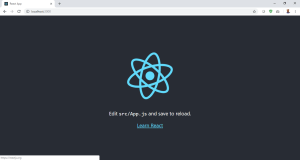
Access localhost URL, http://localhost:3000/. React basic application will be displayed as given below.

React JS_Hello World App

This basic application doesn’t handle back-end logic or databases; it just creates a front-end build pipeline, so you can use it with any back-end you want. But, it installs Babel and webpack behind the scenes, below is the purpose of Babel and webpack:

Babel is a JavaScript compiler and transpiler, used to convert one source code to other. You will be able to use the new ES6 features in your code where, babel converts it into plain old ES5 which can be run on all browsers.

Webpack is a module bundler, it takes dependent modules and compiles them to a single bundle file. You can use this bundle while developing apps using command line or, by configuring it using webpack.config file.


Apache Kafka – Environment Setup


Apache Kakfa is an opensource distributed event streaming platform which works based on publish/subscribe messaging system. That means, there would be a producer who publishes messages to Kafka and a consumer who reads messages from Kafka. In between, Kafka acts like a filesystem or database commit log.

In this post we will setup kafka local environment, create topic, publish and consume messages using console clients.

Step 1: Download latest version of Apache Kafka from Apache Kafka website: https://kafka.apache.org/downloads.

Extract the folder into your local and navigate to the folder in Terminal session (if Mac) or command line (if windows):

$ tar -xzf kafka_2.13-3.1.0.tgz 
$ cd kafka_2.13-3.1.0

Step 2: Run Kafka in your local:

Run zookeeper using the below command terminal/command line window 1:

# Start the ZooKeeper service
$ bin/zookeeper-server-start.sh config/zookeeper.properties

Run Kafka using the below command in another terminal or command line:

# Start the Kafka broker service
$ bin/kafka-server-start.sh config/server.properties

Note: You must have Java8 or above in your machine to run Kafka.

Once above two services are run successfully in local, you are set with running Kafka in your local machine.

Step 3: Create topic in Kafka to produce/consume the message in another terminal or command like. In below example, topic name is ‘order-details’ and kafka broker is running in my localhost 9092 port.

$ bin/kafka-topics.sh --create --topic order-details --bootstrap-server localhost:9092

If needed, use describe topic to understand more details about topic created above:

$ bin/kafka-topics.sh --describe --topic order-details --bootstrap-server localhost:9092

Output looks like below:
Topic: order-details	PartitionCount: 1	ReplicationFactor: 1	Configs: segment.bytes=1073741824
	Topic: order-details	Partition: 0	Leader: 0	Replicas: 0	Isr: 0

Step 4: Write events to topic

Run the console producer client to write a few events into your topic. By default, each line you enter will result in a separate event being written to the topic.

$ bin/kafka-console-producer.sh --topic order-details --bootstrap-server localhost:9092
Order 1 details
Order 2 details

Step 5: Read events from Kafka

Open another terminal session/command line and run the console consumer client to read the events you just created:

$ bin/kafka-console-consumer.sh --topic order-details --from-beginning --bootstrap-server localhost:9092
Order 1 details
Order 2 details

Conclusion:

By completing all the above steps, you learned about setting up kafka environment, creating topics, producing the messages using console producer and consming the message using console consumer.

Different ways of sorting an User Object


There are many ways to sort a java object but it is very hard to figure out which one is more efficient. Here is an example which describes different ways of executing sorting mechanism for User object based on age.

Try to run this application in you local machine to see which method is more efficient and good to use in our regular programming life.

package com.malliktalksjava.java8;

import java.util.ArrayList;
import java.util.Collections;
import java.util.Comparator;
import java.util.List;

import static java.util.stream.Collectors.toList;

public class SortingExampleUser {

    public static void main(String[] args) {
        List<User> userList = new ArrayList<>();
        userList.add(new User("Ram", 28));
        userList.add(new User("Raj", 35));
        userList.add(new User("Rakesh", 31));
        userList.add(new User("Peter", 30));
        userList.add(new User("John", 25));
        userList.add(new User("Sri", 55));

        long starttime = System.currentTimeMillis();
        System.out.println("sortListUsingCollections : " + sortListUsingCollections(userList));
        System.out.println("Time Taken in Millis : " + (System.currentTimeMillis() - starttime));

        long starttime2 = System.currentTimeMillis();
        System.out.println("sortListUsingCollections : " + sortListUsingStreams(userList));
        System.out.println("Time Taken in Millis  2: " + (System.currentTimeMillis() - starttime2));

        long starttime3 = System.currentTimeMillis();
        System.out.println("sortListUsingCollections : " + sortUsingLambda(userList));
        System.out.println("Time Taken in Millis  2: " + (System.currentTimeMillis() - starttime3));


    }


    //using Collections.sort
    private static List<User> sortListUsingCollections(List<User> list){

        Collections.sort(list, Comparator.comparingInt(User::getAge));
        //Collections.reverse(list); // un comment if for descending order

        return list;
    }

    //using streams and comparator
    private static List<User> sortListUsingStreams(List<User> list){

        return list.stream()
                .sorted(Comparator.comparingInt(User::getAge))
                //.sorted(Comparator.comparingInt(User::getAge).reversed()) //-- for reverse order uncomment this line and comment above line
                .collect(toList());
    }

    //using lambda expressions
    private static List<User> sortUsingLambda(List<User> list){

        return list.stream()
                .sorted((User user1, User user2) -> user1.getAge() > user2.getAge() ? 1: 0)
                //.sorted((User user1, User user2) -> user1.getAge() < user2.getAge() ? 1: 0) - uncomment if reverse order needed
                .collect(toList());

    }
}

class User{
    private String name;
    private int age;

    public User(String name, int age) {
        this.name = name;
        this.age = age;
    }

    public String getName() {
        return name;
    }

    public void setName(String name) {
        this.name = name;
    }

    public int getAge() {
        return age;
    }

    public void setAge(int age) {
        this.age = age;
    }

    @Override
    public String toString() {
        return "User{" +
                "name='" + name + '\'' +
                ", age=" + age +
                '}';
    }
}

Selenium Automation – Open URL in multiple browsers


This example shows how to open a url in multiple browsers for browser based testing using Selenium and WebdriverManager.

package seleniumProjects;

import org.openqa.selenium.WebDriver;
import org.openqa.selenium.chrome.ChromeDriver;
import org.openqa.selenium.edge.EdgeDriver;
import org.openqa.selenium.firefox.FirefoxDriver;
import org.openqa.selenium.safari.SafariDriver;

import io.github.bonigarcia.wdm.WebDriverManager;
import io.github.bonigarcia.wdm.config.DriverManagerType;

public class StartBrowser{
	
	static WebDriver driver = null;
	static String[] appList= {"chrome","firefox","edgedriver", "safari"};
	
	public static void main(String[] args) throws Exception {
		
		for(int i=0;i<appList.length;i++) {
		browserStart(appList[i],"http://google.com");
		Thread.sleep(5000);
		browserClose();
	
		}
	}
	

	public static void browserStart(String appName, String appUrl)
			throws InstantiationException, IllegalAccessException {

		if (appName.equals("chrome")) { //Run Chrome browser
			WebDriverManager.chromedriver().setup();
			driver = new ChromeDriver();
		} else if (appName.equals("firefox")) { //Run in Firefox broweser
			WebDriverManager.firefoxdriver().setup();
			driver = new FirefoxDriver();
		} else if (appName.equals("edgedriver")) { // Run in Edge browser
			WebDriverManager.edgedriver().setup();
			driver = new EdgeDriver();
		} else if (appName.equals("safari")) { //Run in Safari browser
            //For Safari browser, you need enable 
			//'Allow Remote Automation' under develop menu
			DriverManagerType safari = DriverManagerType.SAFARI;
			WebDriverManager.getInstance(safari).setup();
			driver = new SafariDriver();
		}

		driver.get(appUrl);
		driver.manage().window().maximize();

	}

	public static void browserClose() {
		driver.close();
	}
}

Convert Maven Project to Gradle Project


Install Gradle into your machine, here are the Gradle installation steps: https://docs.gradle.org/current/userguide/installation.html#installation

After successful installation of Gradle, below command should work in your command prompt/terminal window.

> gradle -v

------------------------------------------------------------
Gradle <<gradle version>>
------------------------------------------------------------

Now navigate to the maven root project directory(where pom.xml exists) and execute the below command:

 > gradle init 

When you run the command, gradle basically pars the existing pom.xmls and generates the corresponding Gradle build scripts. Gradle will also create a settings script if you’re migrating a multi-project build.

The new Gradle build includes the following:

  • All the custom repositories that are specified in the POM
  • External and inter-project dependencies
  • The appropriate plugins to build the project

Once successful migration of the project, you can run the below command to build the gradle project.

> gradle build

This will run the tests and produce the required artifacts without any extra intervention on your part.

Note: If your project contains multiple modules in which each module have its own pom with dependencies, then you may need to run `gradle init` command in each directory where ever pom exists.

Gradle Vs Maven


Started my software developement career in Java with Ant build tool. By the time I want to learn about Ant, my team has migrated to Maven in early 2011. Since then, Maven is only the build tool that have been using for all the applications.

Currently, Gradle and Maven are the two major build tools that many developers use during the software developement process. Some times it is very difficult to make a decision on which build tool to be used and why to use it? Most of the software developers are comforatble to use Maven, as it is standardised few years back or it might be already integrated with their existing applications.

But using a right build tool actually improves the devlopement and deployment time for a individual developers. In this article, I would like to discuss about Gradle and Maven build tools. At the end, we can conclude which build tool is a best fit for your application.

Gradle:

Gradle is a dependency management and a build automation tool used for different programming languages like Java, Android, C/C++. Gradle is based on a graph of task dependencies – in which tasks are the things that do the work.

Gradle led to smaller configuration files – compared to maven- with less clutter since the language was specifically designed to solve specific domain problems. Gradle’s configuration file is by convention called build.gradle.

Sample build.gradle file is below:

apply plugin: ‘java’

repositories {
mavenCentral()
}

jar {
baseName = ‘gradleExample’
version = ‘1.0.0-SNAPSHOT’
}

dependencies {
compile ‘junit:junit:4.12’
}

Maven:

Apache Maven is a dependency management and a build automation tool, primarily used for Java applications. Maven is based on a fixed and linear model of phases.

Maven prescribes strict project structure using configuration file called pom.xml, which also contains build and dependency management instructions. Maven’s build process is based on the available plugins in pom.xml. Maven supports wide range of plugins available in the market.

Here is the sample Spring-boot application maven pom.xml file

<project xmlns="http://maven.apache.org/POM/4.0.0" xmlns:xsi="http://www.w3.org/2001/XMLSchema-instance"
	xsi:schemaLocation="http://maven.apache.org/POM/4.0.0 https://maven.apache.org/xsd/maven-4.0.0.xsd">
	<modelVersion>4.0.0</modelVersion>
	<parent>
		<groupId>org.springframework.boot</groupId>
		<artifactId>spring-boot-starter-parent</artifactId>
		<version>2.2.1.RELEASE</version>
		<relativePath/> <!-- lookup parent from repository -->
	</parent>
	<groupId>in.malliktalksjava</groupId>
	<artifactId>spring-boot-maven</artifactId>
	<version>0.0.1-SNAPSHOT</version>
	<name>spring-boot-maven</name>
<properties>
    <java.version>1.8</java.version>
</properties>

<dependencies>
    <dependency>
        <groupId>org.springframework.boot</groupId>
        <artifactId>spring-boot-starter-web</artifactId>
    </dependency>

    <dependency>
        <groupId>org.springframework.boot</groupId>
        <artifactId>spring-boot-starter-test</artifactId>
        <scope>test</scope>
        <exclusions>
            <exclusion>
                <groupId>org.junit.vintage</groupId>
                <artifactId>junit-vintage-engine</artifactId>
            </exclusion>
        </exclusions>
    </dependency>
</dependencies>

<build>
    <plugins>
        <plugin>
            <groupId>org.springframework.boot</groupId>
            <artifactId>spring-boot-maven-plugin</artifactId>
        </plugin>
    </plugins>
</build>

Which build tool is best suitable?

Both Maven and Gradle have their respective strengths and weaknesses, here are some points considered on Maven Vs Gradle

  • Flexibility: Both Gradle and Maven provide convention over configuration. However, Maven provides a very rigid model that makes customization tedious and sometimes impossible. While this can make it easier to understand any given Maven build, as long as you don’t have any special requirements, it also makes it unsuitable for many automation problems. Gradle, on the other hand, is built with an empowered and responsible user in mind.
  • Performance: Improving build time is one of the most direct ways to ship faster. Both Gradle and Maven employ some form of parallel project building and parallel dependency resolution. The biggest differences are Gradle’s mechanisms for work avoidance and incrementality. Here is the Performance comparision results for Maven and Gradle: https://gradle.org/gradle-vs-maven-performance/
  • User Experiance:  Maven also supports a wide variety of build life-cycle steps and integrates seamlessly with third-party tools such as CI servers, code coverage plugins, and artifact repository systems, among others. As far as plugins go, there is a growing number of available plugins now, and there are large vendors that have Gradle-compatible plugins. However, there are still more available plugins for Maven compared to the number available for Gradle. Gradle provides an interactive web-based UI for debugging and optimizing builds: build scans. These can also be hosted on-premise to allow an organization to collect build history and do trend analysis, compare builds for debugging, or optimize build times.
  • Dependency Management: Both build systems provide built-in capability to resolve dependencies from configurable repositories. Both are able to cache dependencies locally and download them in parallel.

Conclusion:

By this time, you might have already decided which tool is best suite for your requirement. Known fact is that, maven holds the majority of build tool market today but Gradle will be definately a good adoption for complex codebases and newly applications.

Here is the video based explanation for the same article:

Helpful Articles:

https://gradle.org/maven-vs-gradle/

https://dzone.com/articles/gradle-vs-maven

https://gradle.org/gradle-vs-maven-performance/

String.join() Example – Java 8


Java 8 has String.join() method where first parameter is separator and then you can pass either multiple strings or some instance of Iterable having instances of strings as second parameter. Here is the sample program:

package in.mallikatalksjava.java8;
import java.time.ZoneId;

public class StringJoinDemo {
   public static void main(String[] args) {
	String joined = String.join("", "mallik", "talks", "java",".in");
	System.out.println(joined);
		
	String directory = String.join("/", "C:", "java", "programs");
	System.out.println(directory);

	String ids = String.join(", ", ZoneId.getAvailableZoneIds());
	System.out.println(ids);
	}
}

Output:
malliktalksjava.in
C:/java/programs
Asia/Aden, America/Cuiaba, Etc/GMT+9, Etc/GMT+8, Africa/Nairobi, America/Marigot, Asia/Aqtau ....etc.

Node JS experienced interview questions


Is Node.js Single-threaded? Why it is required?

Yes, Node Js is single threaded to perform asynchronous processing.
All Node JS applications uses “Single Threaded Event Loop Model” architecture to handle multiple concurrent clients. Doing async processing on a single thread could provide more performance and scalability under typical web loads than the typical thread-based implementation.

What are events in Node Js?

An event is an action or occurrence recognized by software/app that is handled by event handler by writing a code that will be executed when the event fired.
Mouse move, Click, file copied or deleted are some examples of events.
In Node Js there are two types of events.
1)System Events: The event that comes from the C++ side.
2)Custom Events: Custom events are user-defined events.

What is an event loop in Node Js?

In Node Js processes are single threaded, to supports concurrency it uses events and callbacks. An event loop is a mechanism that allows Node.js to perform non-blocking I/O operations.

What is Express JS?

Express JS is an application framework which is light-weighted node JS. A number of flexible, useful and important features are provided by this JavaScript framework for the development of mobile as well as web applications with the help of node JS.

List some features of Express JS.

Some of the main features of Express JS are listed below: –

  • It is used for setting up middlewares so as to provide a response to the HTTP or RESTful requests.
  • With the help of express JS, the routing table can be defined for performing various HTTP operations.
  • It is also used for dynamically rendering HTML pages which are based on passing arguments to the templates.
  • It provides each and every feature which is provided by core Node JS.
  • The performance of Express JS is adequate due to the presence of a thin layer prepared by the Express JS.
  • It is used for organizing the web applications into the MVC architecture.
  • Everything from routes to rendering view and performing HTTP requests can be managed by Express JS.

Why we need to use Express.js in a node application?

Below are the few reasons why to use Express with Node.js

  • Express js is built on top of Node.js. It is the perfect framework for ultra-fast Input / Output.
  • Cross Platform
  • Support MVC Design pattern
  • Support of NoSQL databases out of the box.
  • Multiple templating engine support i.e. Jade or EJS which reduces the amount of HTML code you have to write for a page.
  • Support Middleware, basic web-server creation, and easy routing tools.

What are the differences between readFile and createReadStream in Node.js?

  • readFile load the whole file which you had marked to read whereas createReadStream reads the complete file in the parts of the size you have declared.
  • The client will receive the data faster in the case of createReadStream in contrast with readFile.
  • In readFile, a file will first completely read by memory and then transfers to a client but in later option, a file will be read by memory in a part which is sent to clients and the process continue until all the parts finish.

Show example for asynchronously/blocking and asynchronously/non-blocking

Normally NodeJs reads the content of a file in non-blocking, asynchronous way. Node Js uses its fs core API to deal with files. The easiest way to read the entire content of a file in nodeJs is with fs.readFile method. Below is sample code to read a file in NodeJs asynchronously and synchronously.

Reading a file in node asynchronously/ non-blocking

var fs = require('fs');  
fs.readFile('DATA', 'utf8', function(err, contents) { console.log(contents);
});
console.log('after calling readFile');

Reading a file in node asynchronously/blocking

var fs = require('fs'); 
var contents = fs.readFileSync('DATA', 'utf8'); console.log(contents);

What are Streams? List types of streams available in Node Js?

Streams are special types of objects in Node that allow us to read data from a source or write data to a destination continuously. There are 4 types of streams available in Node Js, they are

  • Readable − For reading operation.
  • Writable − For writing operation.
  • Duplex − Used for both read and write operation.
  • Transform − A type of duplex stream where the output is computed based on the input.

How to generate unique UUIDs/ guid in Node Js

Use node-uuid package to generate unique UUIDs/ guid in Node Js. Below code demonstrates how to generate it.

var uuid = require('node-uuid'); 
// Generate a v1 (time-based) id
uuid.v1();
// Generate a v4 (random) id
uuid.v4();

Rewrite the code sample without try/catch block:

Source: medium.com

Consider the code:

async function check(req, res) {
  try {
    const a = await someOtherFunction();
    const b = await somethingElseFunction();
    res.send("result")
  } catch (error) {
    res.send(error.stack);
  }
}

Rewrite the code sample without try/catch block.

Answer:

async function getData(){
  const a = await someFunction().catch((error)=>console.log(error));
  const b = await someOtherFunction().catch((error)=>console.log(error));
  if (a && b) console.log("some result")
}

or if you wish to know which specific function caused error:

async function loginController() {
  try {
    const a = await loginService().
    catch((error) => {
      throw new CustomErrorHandler({
        code: 101,
        message: "a failed",
        error: error
      })
    });
    const b = await someUtil().
    catch((error) => {
      throw new CustomErrorHandler({
        code: 102,
        message: "b failed",
        error: error
      })
    });
    //someoeeoe
    if (a && b) console.log("no one failed")
  } catch (error) {
    if (!(error instanceof CustomErrorHandler)) {
      console.log("gen error", error)
    }
  }
}
How to convert a JKS Keystore to a PKCS12 (.p12) format


To convert a JKS (.jks) keystore to a PKCS12 (.p12) keystore, run the following command:

Note: This command is supported on JDK / JRE keytool versions 1.6 and greater.

keytool -importkeystore -srckeystore <jks_file_name.jks> -destkeystore <pk12_file_name.p12> -srcstoretype JKS -deststoretype PKCS12 -deststorepass <password>

To verify the content of .p12 (e.g. pk12_file_name.p12), run the following command:
keytool -list -v -keystore <“pk12_file_name.p12”> -storetype <password>

What is a WeakMap in ES6?


A WeakMap is just like a normal Map with a few key differences:

  1. a WeakMap can only contain objects as keys,
  2. a WeakMap is not iterable which means it can’t be looped and
  3. a WeakMap does not have a .clear() method.

Below example shows how to create a WeakMap, it just like you would a normal Map, except that you use the WeakMap constructor.

const book1 = { title: ‘book 1’, author: ‘author 1’ };
const book2 = { title: ‘book 2’, author: ‘author 2’};
const book3 = { title: ‘book 3’, author: ‘author 3’ };

const library = new WeakMap();
library.set(book1, true);
library.set(book2, false);
library.set(book3, true);

console.log(library);

Output:

WeakMap {Object {title: ‘book 1’, author: ‘author 1’ => true, Object {title: ‘book 2’, author: ‘author 2’} => false, Object {title: ‘book 3’, author: ‘author 3’} => true}

…but if you try to add something other than an object as a key, you’ll get an error!

library.set(‘book 4’, false);
Uncaught TypeError: Invalid value used as weak map key(…)

This is because WeakMap can only contain objects as keys. WeakMaps leverage garbage collection for easier use and maintainability.